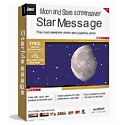
 If you are interested in the phases of the moon, the StarMessage screensaver can be a convenient reminder for you.
It shows you the current moon phase inside a realistic presentation of the night sky and warns you about the upcoming full moon. The screensaver starts whenever you do not use your computer and instantly shows you the current moon phase. This is an effortless way to stay in touch with the moon phases; you do not need to visit a website or have an online internet connection to see how the moon will be tonight. This is what makes this screensaver an excellent companion or replacement of a usual moon phase calendar. But that’s not all. The screensaver also adds a romantic scent in your daily life as you can leave a series of love quotes and the stars of the night sky will move around to write your messages. If you are lucky and fast enough you might see a falling star and make a wish on it. The screensaver has also a handpicked list of famous quotes, so you can turn them on, and read quotes of wisdom, love and peace on your screen every time the screensaver starts. You can download a free trial version at http://www.starmessagesoftware.com/moonscreensaver/ No credit cards required, no forms to fill in. The program is completely free of any 3rd party advertising modules. Installation and removal is easily done in less than 1 minute of your time. Enjoy this different moon phases screensaver and let it bring beautiful emotions in your heart.
0 Comments
If you are interested in the phases of the moon, the StarMessage screensaver can be a nice reminder of them.
It shows you the current moon phase inside a realistic presentation of the night sky and warns you about the upcoming full moon. As the screensaver starts when you do not use your computer, this is an effortless way to stay in touch with the moon phases; you do not need to visit a website or have an internet connection to see how the moon will be tonight. The screensaver also adds a romantic scent in your daily life as you can leave a series of romantic messages and the stars of the night sky will move to write your messages. You can have a free trial version at http://www.starmessagesoftware.com/moonscreensaver/ Installation and removal is a 1-minute easy task. You probably need to adjust the monitor power settings as well.
When you set the screensaver idle time to lets say 5 minutes, make sure that the idle time for the monitor power off is set to something bigger, e.g. 15 minutes. Windows will switch off your monitor after 15 minutes and you will have the screensaver running for 10 minutes. The monitor power options are controlled from the same screen as the screensaver idle time. Read more on how to configure the screensaver idle time We can send you a new activation code.
Please fill in the license request form » You have to be carefull when you download and try screensavers, especially free screensavers.
Some free screensavers come with unwanted third party software inside. This malware software can delivering adversisements to you, or it can be a special toolbar for internet explorer that promises to make your life easy, etc. Guidelines for safe downloading:
About the StarMessage screensaver: Starmessage is perfectly safe to use. There is no third party software bundled with it. Starmessage is not free. It has a price (although low) and does not rely on 3rd party malware or adware (like some other free screensavers) to make a profit. Starmessage has a self-check module and if it gets infected by a virus, it stops working and shows an error message. So starmessage can reveal to you an underlying problem. Do I need to uninstall the previous version before installing the new screensaver version?8/17/2009 Starting from the screensaver version v4.00, you can safely install the new version over the old one.
In the battle of humans against the machines, sometimes the machines win. The program might have a bug and we will have to fight against it.
A screensaver is a small software application that is automatically activated when you leave your computer unattended without any keyboard of mouse activity, for 5 or more minutes. The first screensavers were build about 20 years ago to save the phosphor of the monitor screen, from being exposed to the electron rays when the users forgot the computer On.
Nowadays screensavers are used mostly to show graphic animations when a user does not work with his computer. In order to have StarMessage (or any other screensaver) at your computer you must follow these steps: 1) Find the screensaver on the internet. 2) Download the screensaver to your computer install it. 3) Set the idle time (optional), after which, the screensaver will start automatically. 4) Configure the screensaver. 5) Enjoy it Yes, in StarMessage Moon phases Screensaver, the picture of the moon changes according to the current moon phase. You have to configure your PC to start the screensaver automatically after some minutes of no activity. (no keyboard hits, no mouse movements) The moon phase type and percent illuminated of the moon disk should appear in the scrolling bottom line. Two days before the full moon, the scrolling line will also show the name of the upcoming full moon.  The bottom line with the percent and the moon phase name.
Yes! It can do almost anything you want. Just wait to see a falling star, and make a wish on it. But be careful to WISH ONLY FOR GOOD things; you cannot make your life better by wishing for bad things. The moon illumination is accurate enough for a normal user. Sometimes, the scrolling bottom line that reports when to expect the full moon may seem to be inaccurate. For example, lets say that the full moon is for June,14 at 00:20. If you run the screensaver at June 13, 21:00, it will say "full moon tonight" because when we say "tonight" we mean until the dawn. So the program may seem to be inaccurate because technically, 00:20 is "tomorrow".
Disclaimer: Keep in mind that no guaranty is given that the program can report the moon phase without errors or with a specific accuracy. Users should NOT rely on the program's calculations to preceed to actions that depend on the accuracy of the moon phases. We can send you a new activation code. You can pay with credit card online/via phone/via fax, paypal, cheque. Go To: [Start] -> [All Programs] -> [StarMessage] -> [Configuration] This will bring up the configuration screen. 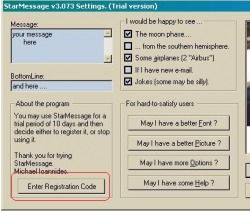 Press the button named [Enter Registration Code]. 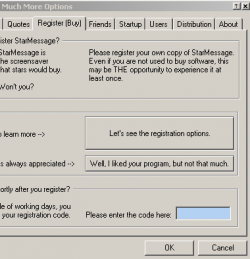 Type the code in the entry box. If the box is not visible due special screen resolution that you might have in your computer, simply Paste the code using the keyboard Control-V (you will have to copy the code first from the "thank you" email) and press Ok
The starmessage screensaver is unregistered if: Go to the main configuration screen, then to Make sure the bottomline is empty of any characters. You can type as a message a single space character " " as the main message at the screensaver configuration screen. You can keep the assembled message longer in the sky by typing a long bottom-line with lots of spaces inside it. To display the '&' character in the messages, type two of them together ('&&'). You configure the screensaver through the “StarMessage settings” screen. Go to: Please go to the settings of the screensaver and make sure that the option "Moon Phase" is ticked. |
Support, Questions and Answers
In this section you will find questions and answers about the StarMessage screensaver. Screensaver support by category
All
Top QuestionsCount down timer.
Change the default message that is written in the stars. How to send a screenshot of a technical problem. Requesting support by email. How to verify if the screensaver is registered. Enabling famous quotes. Hiding the bottomline and the full moon notifications. How can I display just the clear sky without messages written in the stars or the love and peace sign How accurate is the moon phase? How to fix the error: "CreateFile failed; code 5" |
 RSS Feed
